Version 4.1.0
Portal
Password visibility at login, consistent styling, multi-level navigation menus, and the ability to deactivate individual roles improve the portal experience.
.png)

Password visibility at login, consistent styling, multi-level navigation menus, and the ability to deactivate individual roles improve the portal experience.
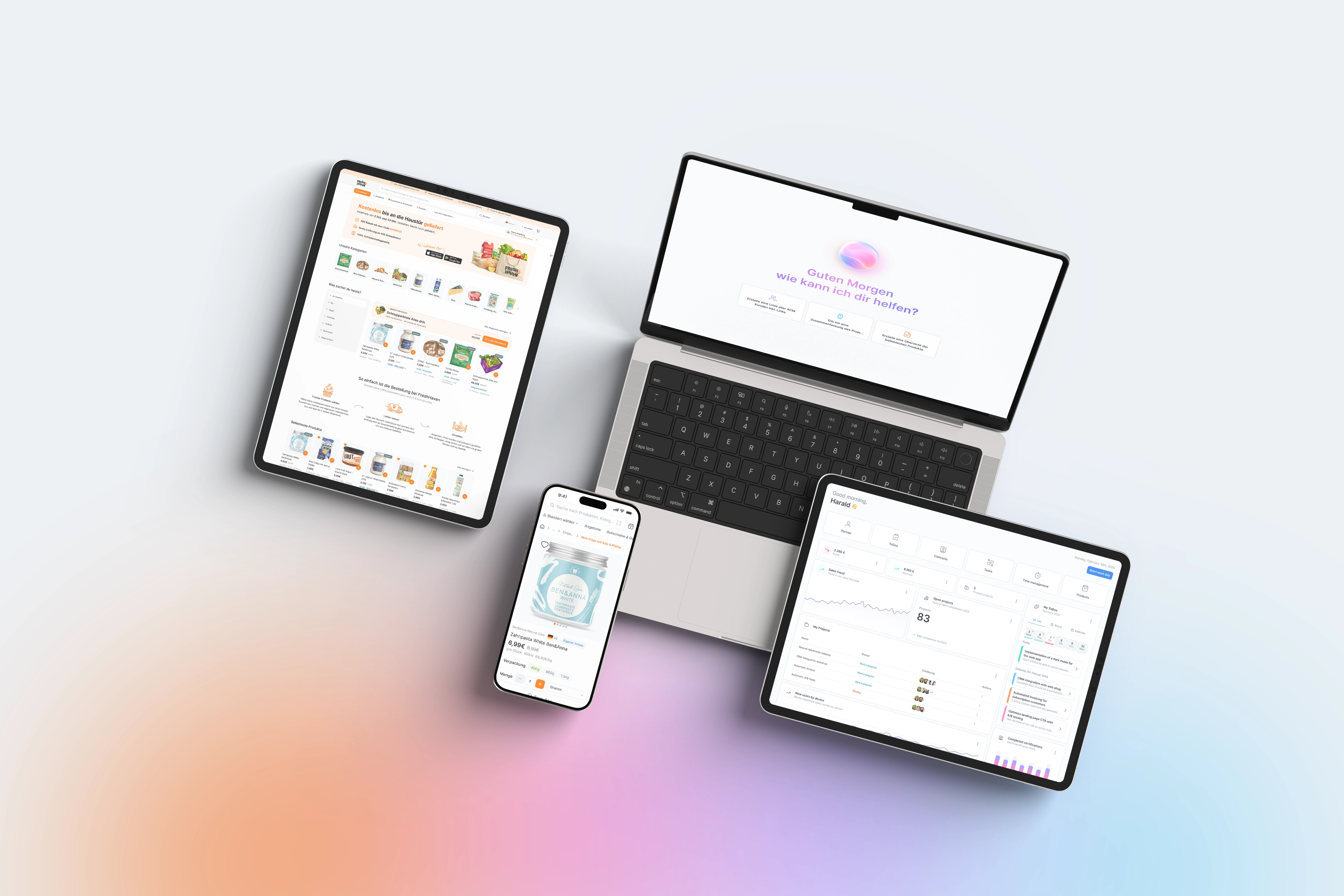
Small friction points during login can quickly add up to real frustration—such as when a typo in a password goes unnoticed because the input is always hidden. The new option to make the password visible with a click during portal login solves this exact problem, saving first-time users from unnecessary support inquiries. At the same time, the styling of the portal login page has been consistently aligned with the standard login: uniform spacing, fonts, and sizes, as well as a burger menu that only appears on small screens when there is actual content to display. For companies offering their partners or customers a deeply structured portal, the new multi-level navigation menu is a significant step forward: submenus can now be neatly expanded instead of listing all menu items on a single level. Administrators also benefit from a noticeable improvement: individual roles within a user group can now be deactivated via a checkbox without having to create an entirely new role group. And with the fabAI design tailored to the portal, the AI assistant is now available to portal users with a cohesive, consistent look and feel.
Password visibility and the revised styling of the portal login page are active by default and require no special configuration. You can set up the multi-level navigation menu in the portal header by assigning sub-items to menu items; the first level can then be expanded and collapsed with a click. You can deactivate individual roles directly in the user group assignment mask using the new checkbox next to the respective role or role group; the system will automatically account for the active/inactive status during every role check thereafter. The portal design for fabAI is automatically active as soon as the assistant is accessed within the portal context. For portals with many nested menu items, we recommend a quick test of the new navigation structure to ensure clarity for end users before rolling it out widely.